

Page Updated on September 28, 2026
StockZuse can check for available application updates to help ensure that you are using the latest available version.
StockZuse periodically checks for updates automatically. You can also check for updates manually at any time and choose how often StockZuse performs automatic update checks.
Follow these steps in the StockZuse application. The images below are provided as examples and are not interactive.
Check for Updates Manually
You can check for a new version of StockZuse at any time.
Click Help on the StockZuse toolbar, then select Check For Updates….
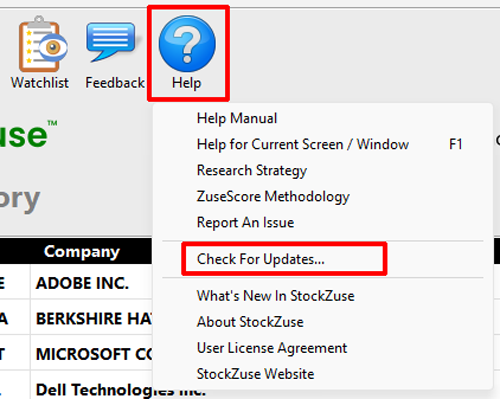
This opens the Check For Updates window.
Check for an Update Now
To check for an available update immediately, click Check Now.
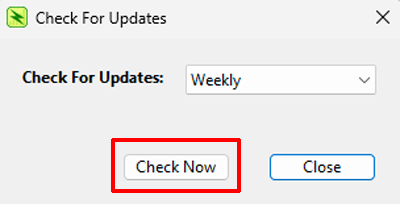
StockZuse checks whether a newer version of the application is available.
If your version of StockZuse is current, StockZuse will indicate that it is up to date.
If a newer version is available, StockZuse gives you the option to download and install the update.
Choose How Often StockZuse Checks for Updates
You can choose how often StockZuse automatically checks for available updates.
Click the Check For Updates dropdown and select one of the following options:
- Every Launch — Check each time StockZuse is started.
- Daily — Check once per day.
- Weekly — Check once per week.
- Monthly — Check once per month.
- Never — Disables automatic update checking.
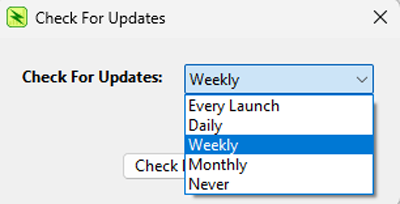
The default setting is Weekly.
You can still click Check Now at any time, regardless of the automatic update setting.
Download and Install an Available Update
If a newer version of StockZuse is available, StockZuse asks whether you want to download and install the update.
Click Yes to continue.
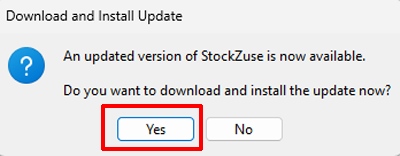
StockZuse downloads the available update and begins the installation process.
If you do not want to install the update at this time, click No. You can check for the update again later by selecting Help → Check For Updates….
Complete the Update
After the update has been downloaded, StockZuse closes and the update is installed.
When StockZuse restarts, a confirmation message indicates that the application was successfully updated.
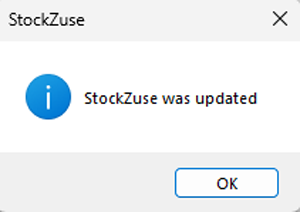
Click OK to continue using StockZuse.