

Page Updated on September 28, 2026
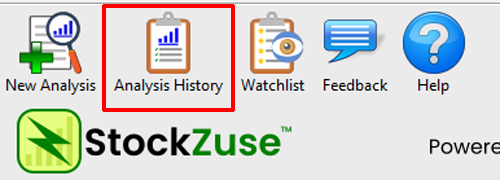
This opens the Analysis History, which displays the company analyses you have previously completed with StockZuse.
Each row represents a saved analysis and includes the analysis date, ticker symbol, company name, ZuseScore, and its Watchlist status.
Open a Previous Analysis
To review a previous analysis, locate the analysis you want to view and double-click its row in the Analysis History.
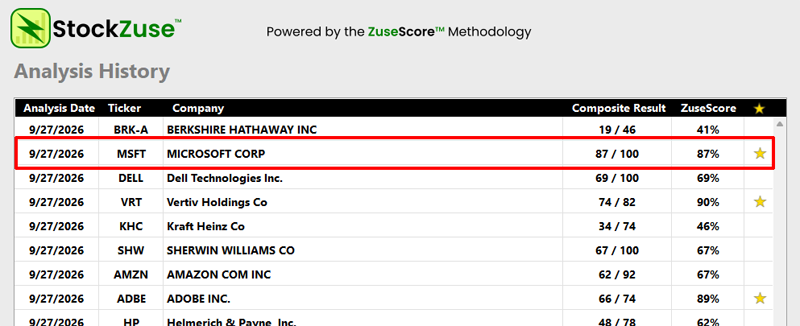
In this example, we are opening the saved analysis for Microsoft Corporation (MSFT).
Alternatively, you can right-click the analysis row and select View Analysis.
StockZuse opens the saved ZuseScore Results for that analysis.
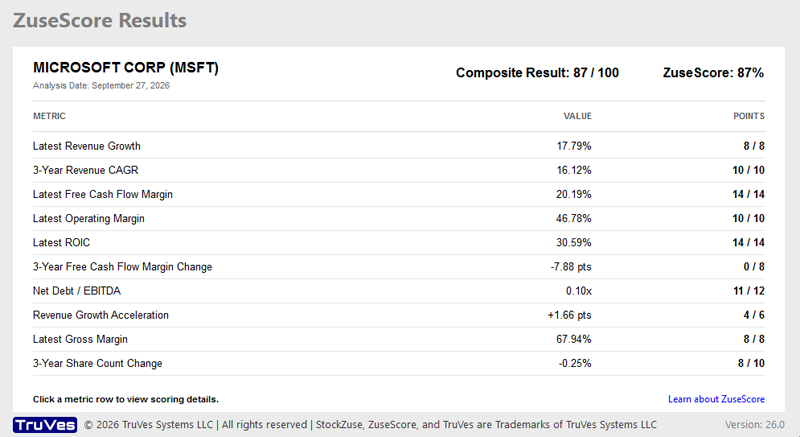
The results shown are from the original analysis. Opening a saved analysis does not retrieve new financial data or recalculate the ZuseScore.
To evaluate the company using currently available financial data, start a New Analysis.
Add a Company to the Watchlist
To add a company to your Watchlist, click the star column for the company’s analysis.
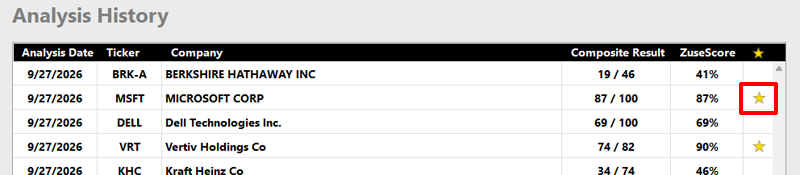
A gold star appears to indicate that the company has been added to the Watchlist.
To remove the company from the Watchlist, click the gold star again. The star disappears, indicating that the company is no longer on the Watchlist.
Alternatively, you can right-click the analysis row and select Add to Watchlist or Remove from Watchlist.
Adding or removing a company from the Watchlist does not change or remove its saved analyses from the Analysis History.