

Page Updated on January 15, 2025
New for Version 24.0
How to Import Readings from the BPTrakr app
The BPTrakr Data File (.bpt) is the file which is used for importing Readings data. To create a BPTrakr Data File in the BPTrakr app, see this guide from the BPTrakr Help Manual. Be sure to use the BPTrakr Data File (.bpt) as your selected data file for your export from the BPTrakr app.
Follow these simple steps for importing a BPTrakr Data File that was previously created by the BPTrakr app.
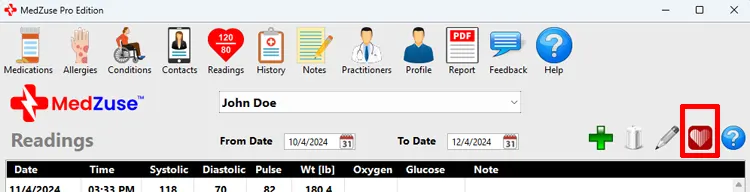
Step 1: On the Readings screen, click on the Import/Export for BPTrakr button. The Import / Export Readings window will appear.
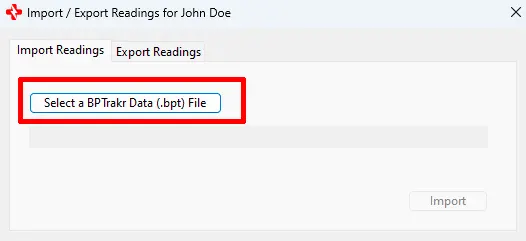
Step 2: On the Import / Export Readings window, select the Import Readings tab, then click on the Select a BPTrakr Data (.bpt) File button. The Select a BPTrakr Data (.bpt) File window will appear.
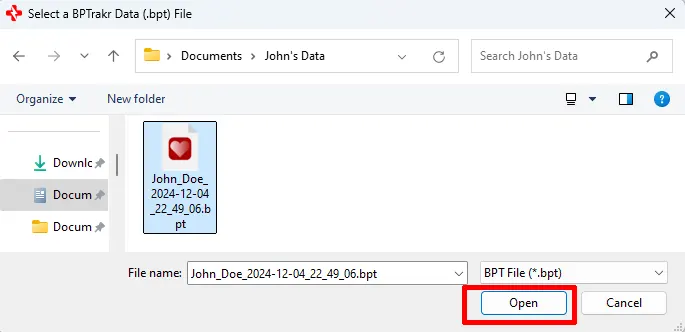
Step 3: On the Select a BPTrakr Data (.bpt) File window, navigate to the location of the BPT data file. Then click on the BPT file to select it. While the file is selected, click on the Open button. The data file will then be loaded into the Import / Export Readings window.
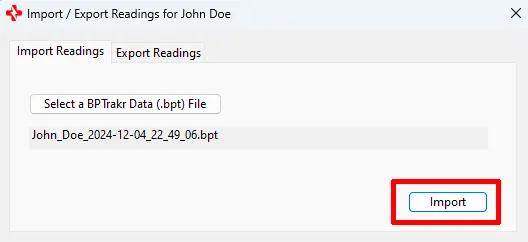
Step 4: On the Import / Export Readings window, click on the Import button.
Step 5: To confirm the data to be imported, click on the Yes button to answer the question.
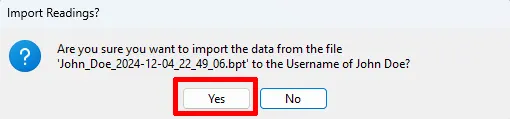
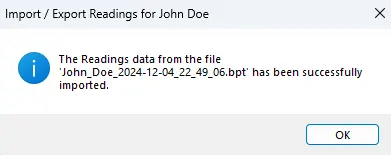
You have successfully imported Readings data!
See also
- Export Readings to BPTrakr
- Learn more about the BPTrakr – Blood Pressure Tracker App
Comments / Questions