

Page Last Updated on 2024-11-27
New for Version 24.0
How to Edit a Condition on the Conditions List
Step 1: On the Conditions screen, select the Condition in the list to be edited. Then click the Edit Selected Row button (the pencil icon). The Condition Record screen will appear.
Tips:
- Alternatively, you can press the Enter key on the keyboard while the row is selected to edit the record.
- Or you can use the mouse to double-click on the row to edit the record.
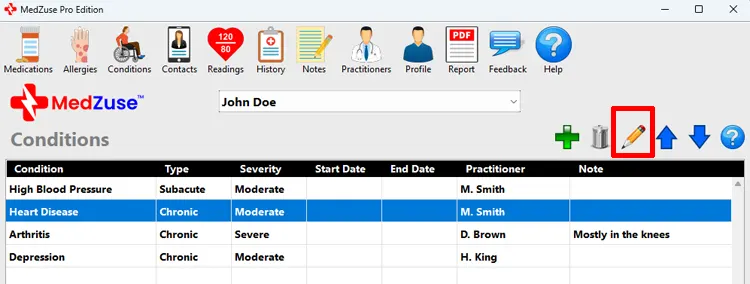
Step 2: On the Condition Record screen, the following fields are available to edit:
- Condition (required)
- Type
- Severity
- Practitioner
- Date Started
- Date Ended
- Note

Step 3: After editing the desired fields, on the right-hand side of the Condition Record screen, click on the Save Record button to save the record.
Tip: Alternatively, you can press the Enter key on the keyboard while the cursor is positioned at any field, to save the record.

See also
- Change the Sort Order of a Record in a List
- Delete a Record in a List
- Delete Multiple Records in a List