

Page Updated on November 6, 2025
How to Edit a Document or Image Record
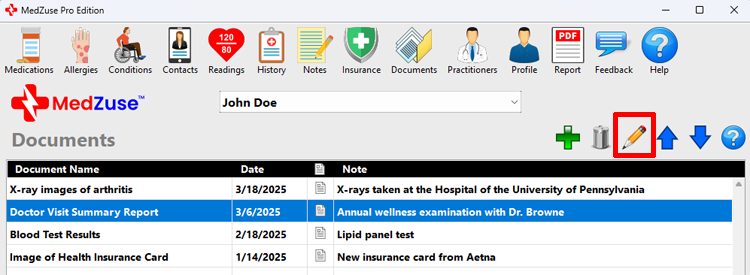
Step 1: On the Documents screen, select the record in the list to be edited. Then click the Edit Selected Row button (the pencil icon). The Document Record screen will appear.
Tips:
- Alternatively, you can press the Enter key on the keyboard while the row is selected to edit the record.
- Or you can use the mouse to double-click on the row to edit the record.
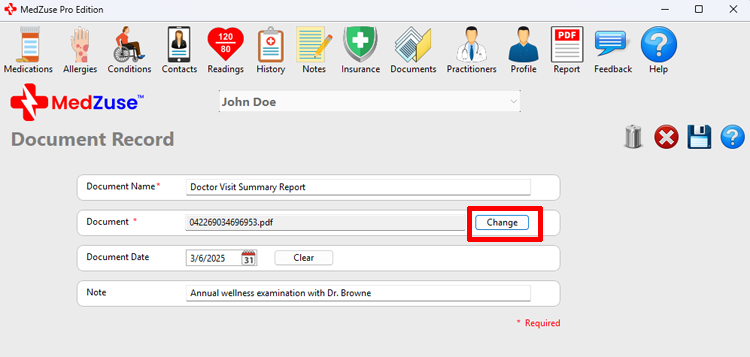
Step 2: On the Document Record screen, the following fields are available:
- Document Name (Required)
- Document (Required)
- Document Date
- Note
Edit the fields as necessary. To change the document, in the Document field, click the Change button. The Open (Document) Window will appear.
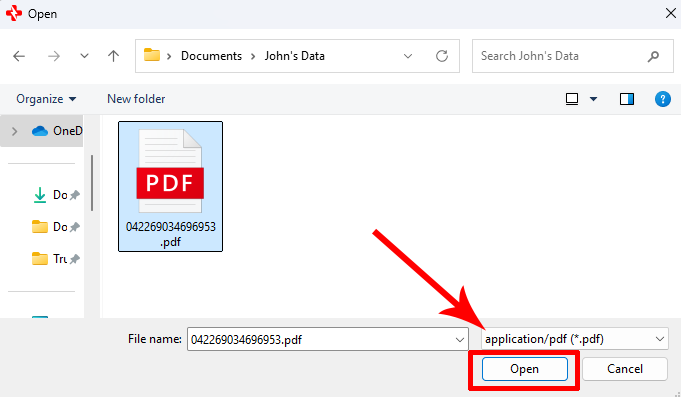
Step 3: The Document Record accepts the following types of documents;
- PDF documents (.PDF)
- Pictures and image scans (.JPG, .JPEG)
On the Open (Document) Window, in the lower right of the window, select the document type (see red arrow), then navigate to the location of the document file. Click on the file to select it. While the file is selected, click on the Open button. The document file will then be loaded into the Document field of the Document Record screen.
Step 4: After completing the desired fields, on the right-hand side of the Document Record screen, click on the Save Record button to save the record.
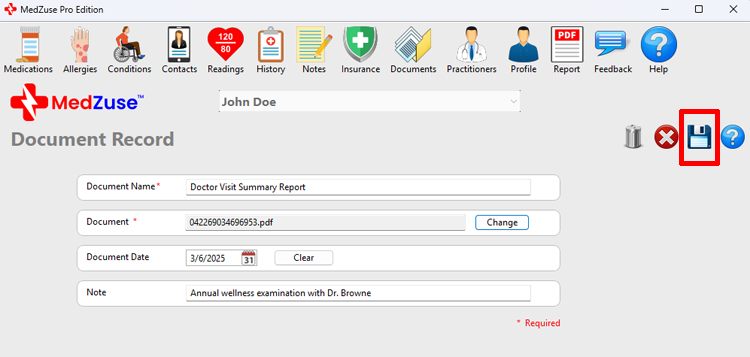
The edited Document Record will now appear in the Documents list.

See also
- View a Document
- Add a Document
- Delete a Record in a List
- Delete Multiple Records in a List
- Change the Sort Order of a Record in a List