

Page Last Updated on 2025-05-26
New for Version 25.1
How to Import a MedZuse Data File
Follow these simple steps for importing a MedZuse Data File that was previously created by the MedZuse app.
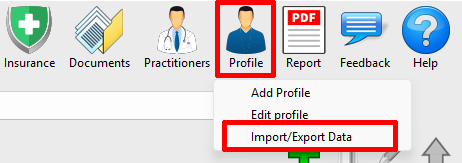
Step 1: On the toolbar, click on the Profile button and select Import/Export Data from the dropdown list. The Import / Export Data File window will appear.
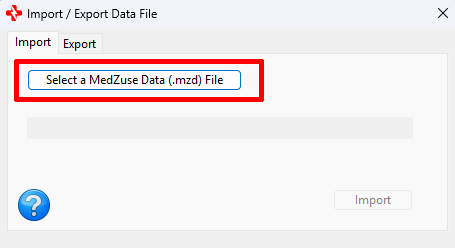
Step 2: On the Import / Export Data File window, select the Import tab, then click on the Select a MedZuse Data (.mzd) File button. The Select a MedZuse Data (.mzd) File window will appear.
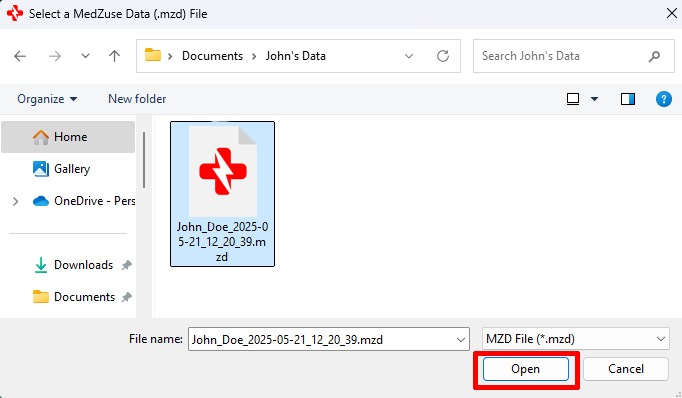
Step 3: On the Select a MedZuse Data (.mzd) File window, navigate to the location of the MZD data file. Then click on the MZD file to select it. While the file is selected, click on the Open button. The data file will then be loaded into the Import / Export Data File window.
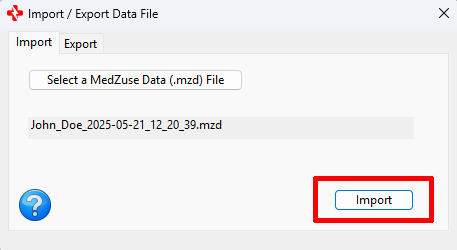
Step 4: On the Import / Export Data File window, click on the Import button.
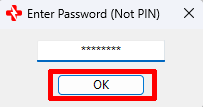
Step 5: If the data file to be imported is encrypted, enter the Password (Not the PIN) to the data file. Then click on the OK button.
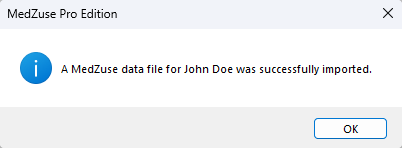
You have successfully imported a MedZuse Data File!
See also
Comments / Questions