

Page Last Updated on 2026-04-26
For Version 26.0 and Later
Important note: As indicated in the MedZuse End User License Agreement, each Pro License key may be installed on one (1) computer only.
Thank you for purchasing a MedZuse Pro Edition License! Follow these instructions to install your license key(s):
Download and Install MedZuse
If you have not done so already, download the MedZuse app from the MedZuse download page. Then double-click on the downloaded installer file and follow the prompts to complete the installation of the MedZuse app onto your computer.
Install Your Pro Edition License
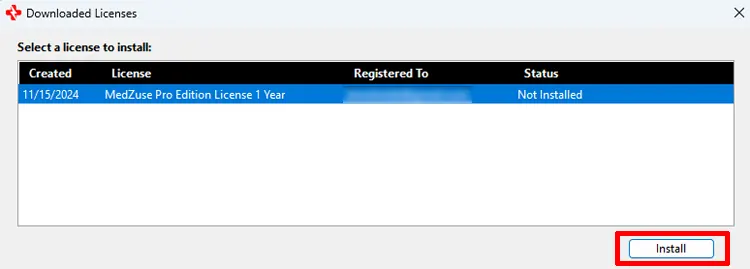
Note: If the Downloaded Licenses window is already showing (as shown below), then your new license has been automatically downloaded, go to Step 3 to complete the license installation. If the Downloaded Licenses window is not showing, then begin with Step 1.

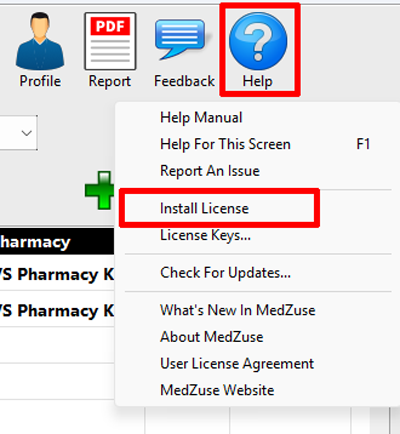
Step 1: Open the MedZuse app on the computer where you want to install the license. On the toolbar, click on the Help button and select Install License from the dropdown list. The Install License window will appear.
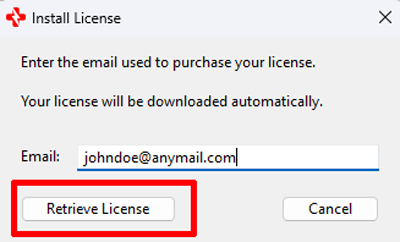
Step 2: On the Install License window, enter the email address you used to purchase your license, then click the Retrieve License button. After a brief wait, the Downloaded Licenses window will appear.
Be sure to use the same email address used to purchase your license.
If the email does not match the order, the license cannot be retrieved.
Step 3: On the Downloaded Licenses window, select the license you want to install, then click on the Install button.
A message box will appear, confirming the installation of the license.
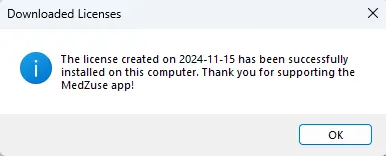
Congratulations! Your MedZuse Pro Edition license is now installed.
Comments / Questions