

Page Last Updated on 2025-11-01
New for Version 25.4
You can now include documents and images that you’ve added to MedZuse — such as from Hospitalizations, Doctor Visits, Allergies, and other sections — directly on your MedZuse Report.
A Pro Edition license is required to create reports containing Documents or Images.
Adding Documents or Images for Inclusion
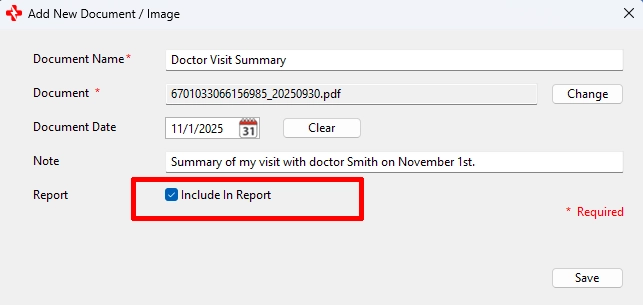
When adding a new document or image in any section (for example, Allergies or Doctor Visits), select the “Include In Report” checkbox in the document record.
This marks the file as preselected to appear on the MedZuse Report.
Creating a Medical Record Report with Your Documents and Images
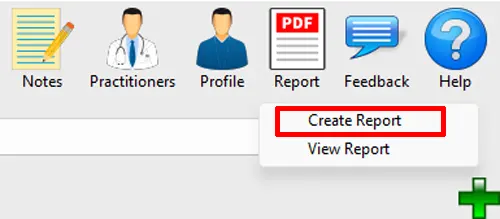
Step 1: On the toolbar, click on the Report button and select Create Report from the dropdown list. The Create Report window will appear.
Step 2: On the Create Report window, click the Options button.

Select the Documents for the Report
Step 3: On the Report Options window, select the Documents tab. You’ll see a list of all documents and images that have been saved in MedZuse. Those documents or images that were saved with “Include In Report” selected in the record will already appear pre-checked in the list. Check the documents you want to include, or uncheck those to exclude from the report. Then click the OK button to save and close the Report Options window.

Create the Report
Step 4: On the Create Report window, select or deselect any other data lists you want to include in the report (such as Medications, Allergies, or Conditions). Make sure that Documents are selected. Then click the OK button to generate your MedZuse Report.

All selected documents and images will be automatically merged with your report into a single, combined PDF. This ensures that recipients can view your complete report — including your attached records — in any standard PDF reader.
Note: The printing of the report is a function of your PDF reader. Consult your PDF reader’s documentation for help to print your report.
See also
Comments / Questions