

Page Last Updated on 2025-10-25
Note: You can save records on the Treatments List only after upgrading to the Pro Edition of MedZuse.
How to Edit a Record on the Treatments List
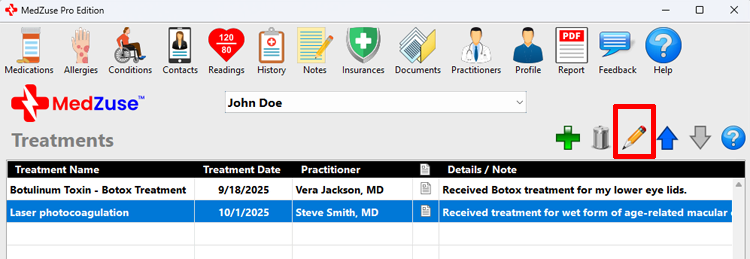
Step 1: On the Treatments screen, select the Treatment Record in the list to be edited. Then click the Edit Selected Row button (the pencil icon). The Treatment Record screen will appear.
Tips:
- Alternatively, you can press the Enter key on the keyboard while the row is selected to edit the record.
- Or you can use the mouse to double-click on the row to edit the record.
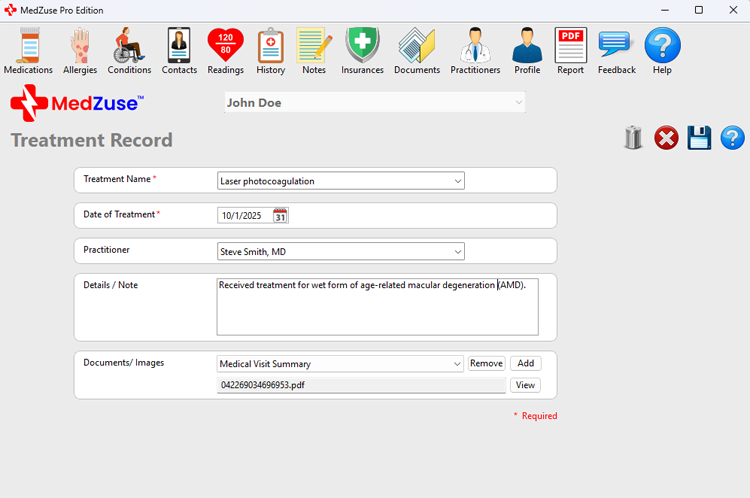
Step 2: On the Treatment Record screen, the following fields are available:
- Treatment Name (Required)
- Date of Treatment
- Practitioner
- Details / Note
- Documents / Images
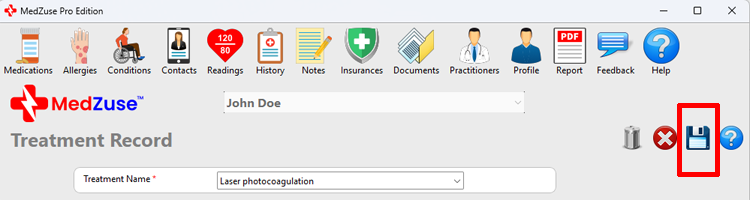
Step 3: After completing the desired fields, on the right-hand side of the Treatment Record screen, click on the Save Record button to save the record.
See also
Comments / Questions
Copyright © 2026 TruVes Systems LLC. All rights reserved.
See Trademarks
of TruVes Systems LLC.