

Page Updated on November 27, 2024
New for Version 24.0
How to Edit a Readings Record on the Readings List
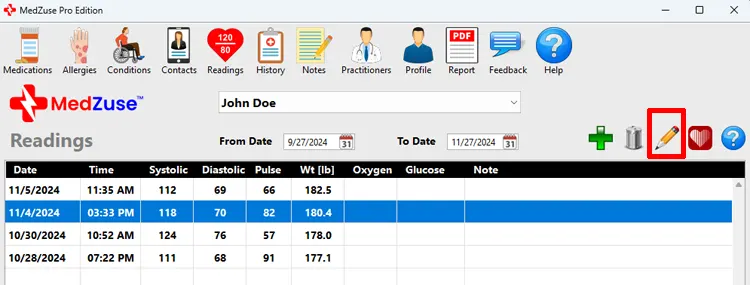
Step 1: On the Readings screen, select the Readings Record in the list to be edited. Then click the Edit Selected Row button (the pencil icon). The Readings Record screen will appear.
Tips:
- Alternatively, you can press the Enter key on the keyboard while the row is selected to edit the record.
- Or you can use the mouse to double-click on the row to edit the record.
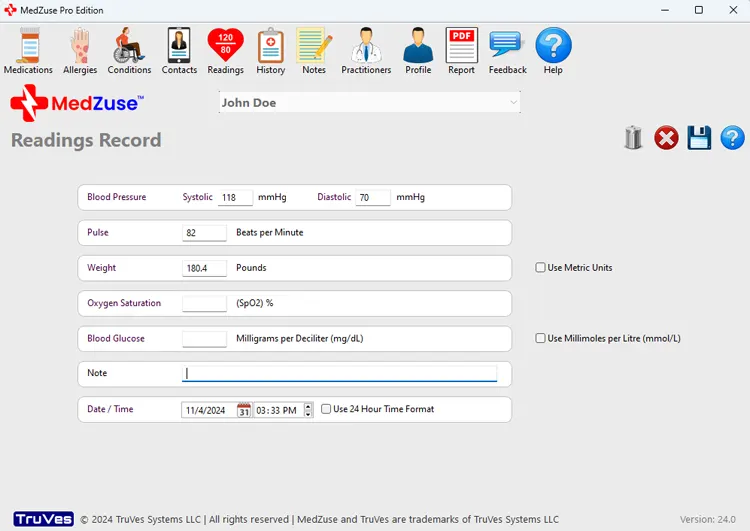
Step 2: On the Readings Record screen, the following fields are available to edit:
- Blood Pressure
- Pulse
- Weight
- Oxygen Saturation
- Blood Glucose
- Note
- Date / Time
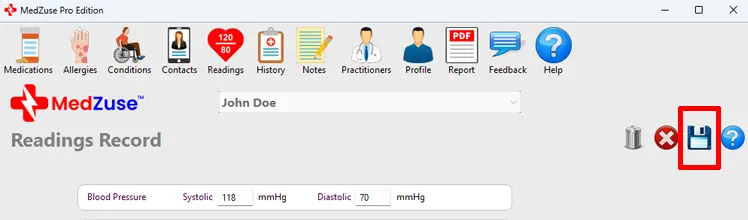
Step 3: After completing the desired fields, on the right-hand side of the Readings Record screen, click on the Save Record button to save the record.
Tip: Alternatively, you can press the Enter key on the keyboard while the cursor is positioned at any field, to save the record.
See also
Comments / Questions
Copyright © 2026 TruVes Systems LLC. All rights reserved.
See Trademarks
of TruVes Systems LLC.