

Page Last Updated on 2024-11-28
New for Version 24.0
The Notes and Questions List is accessible only when you upgrade to the Pro Edition of Medzuse.
How to Add a Note or Question to the Notes and Questions List
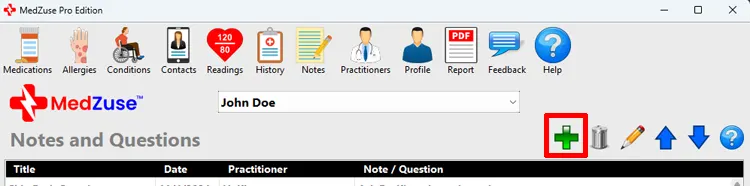
Step 1: On the Notes and Questions screen, click the Add Record button (the green plus-sign icon). The Notes and Questions Record screen will appear.
Step 2: On the Notes and Questions Record, the following fields are available:
- Title (Required)
- Note / Question (Required)
- Practitioner
- Date

Step 3: After completing the desired fields, on the right-hand side of the Notes and Questions Record screen, click on the Save Record button to save the record.
Tip: Alternatively, you can press the Enter key on the keyboard while the cursor is positioned at any field, to save the record.

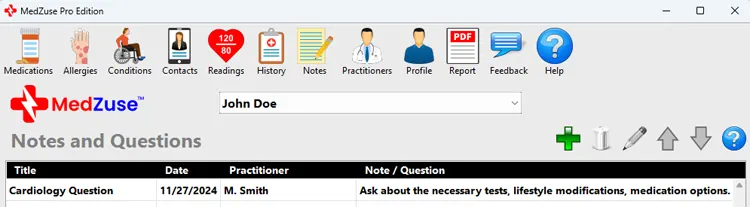
The new Notes and Questions record will now appear in the list.
Repeat the steps above to add more records to the list.
See also
- Edit a Note or Question Record on the Notes and Questions List
- Delete a Record in a List
- Delete Multiple Records in a List
Comments / Questions