

Page Updated on May 9, 2026
The Import/Export Medications feature located on the Medications screen in BPTrakr allows the user to import a medications list via a comma-separated values (CSV) file that was created by the BPTrakr app. The tool can also export a medications list in the same CSV file format. For guidance on exporting see How to Export the Medications List.
Note that the function of the Import/Export Medications feature only applies to the medications data and does not import or export blood pressure data or any other data in the BPTrakr app.
Importing the Medications List
Follow these steps to import a medications CSV file that was previously exported from BPTrakr:
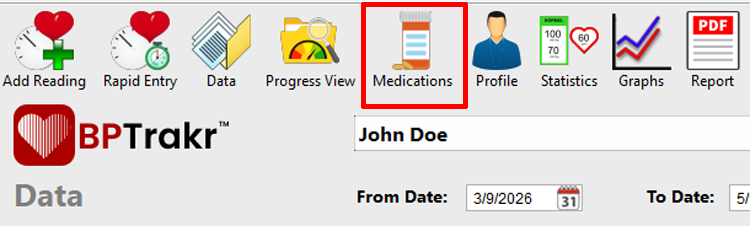
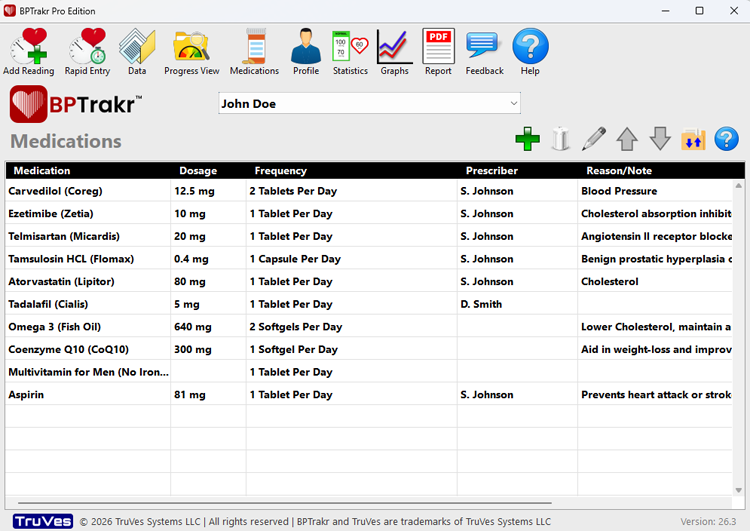
Step 1: On the toolbar, click on the Medications button. The Medications screen will appear.
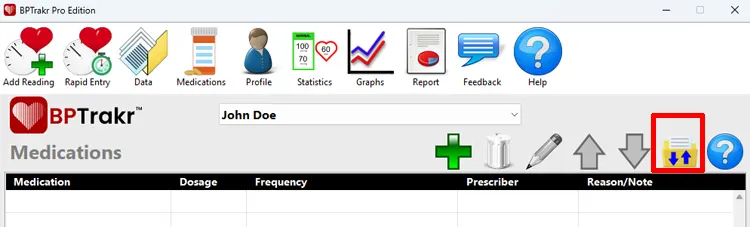
Step 2: The Medications screen, select the Username for the data that you want to import, then click on the Import/Export Medications button. The Import/Export Medications window will appear.
Step 3: On the Import/Export Medications window, select the Import tab, then click on the Select a CSV File button.

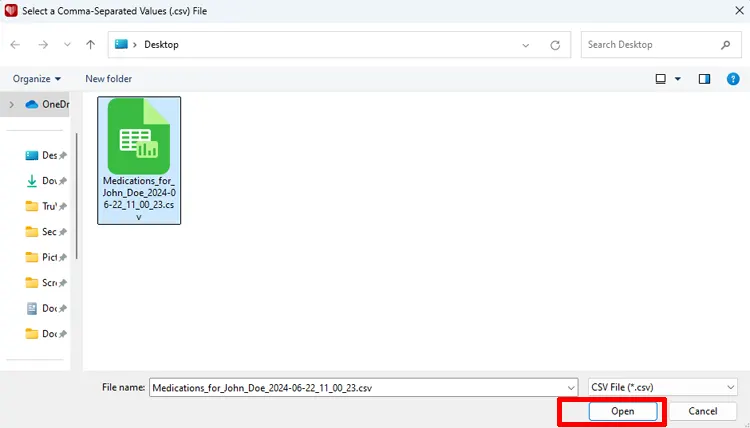
Step 4: On the Select a CSV file window, navigate to the location of the CSV file. Then click on the CSV file to select it. While the file is selected, click on the Open button. The data file will then be loaded into the Import/Export Medications window.
Step 5: On the Import/Export Medications window, click on the Preview Import button. The Preview Import window will appear.
New for Version 26.3

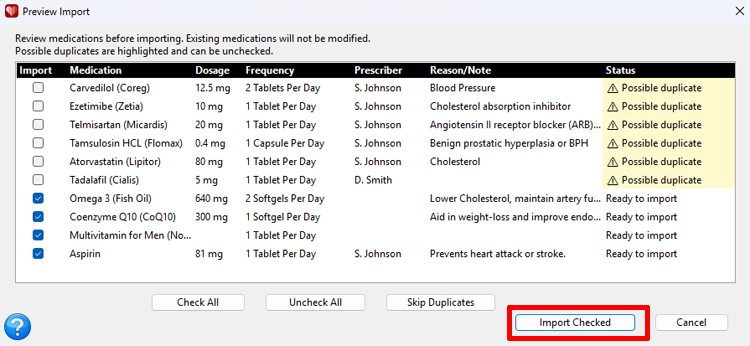
Step 6: On the Preview Import window, review the medications before importing them. Possible duplicate medications are highlighted and can be unchecked if you do not want to import them. Existing medications will not be modified. After reviewing the medications and selecting those you want to import, click the Import Checked button.
You have successfully imported a Medications List!
See also
- How to Export the Medications List
- How to Create a Medications List
- How to Edit a Medications List
- How to add a Medications List to the Blood Pressure Report
Comments / Questions