

Page Last Updated on 2025-06-18
How to Add a User Profile
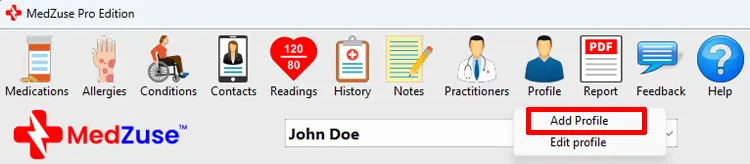
Step 1: On the toolbar, click on the Profile button and select Add Profile from the dropdown list. The Profile screen will appear.
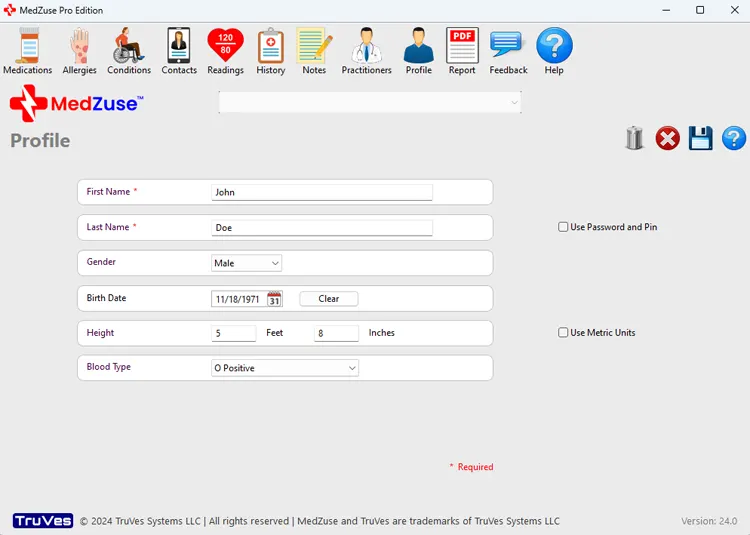
Step 2: On the Profile screen, the following fields are available:
- First Name (required)
- Last Name (required)
- Gender
- Birth Date
- Height
- Blood Type
There are also options to Use Metric Units and to Use Password and PIN.
If you choose to encrypt your data using a password and PIN, it is entirely your responsibility to securely store and remember this information. The owner and developer of MedZuse cannot recover encrypted data if the password or PIN is lost. In such cases, your data will be permanently inaccessible.
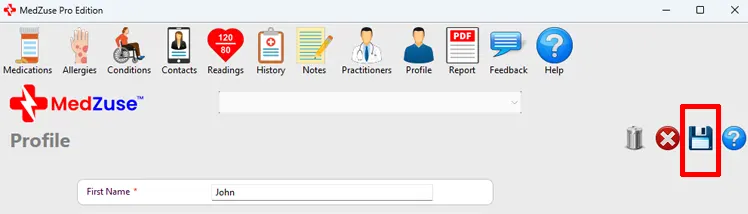
Step 3: After completing the desired fields, on the right-hand side of the Profile screen, click on the Save Record button to save the record.
Tip: Alternatively, you can press the Enter key on the keyboard while the cursor is positioned at any field, to save the record.
A message will appear confirming that the profile was saved successfully.

See also
Comments / Questions